
Offline / Manual Activation is only necessary when the server cannot connect to the Deztec licensing service to complete Online / Automatic Activation, which is the recommended license-installation method.
Follow these steps on the server where the product is installed.
1 Create a License Request
Sign in to the server with an account that can modify the installation. Then open
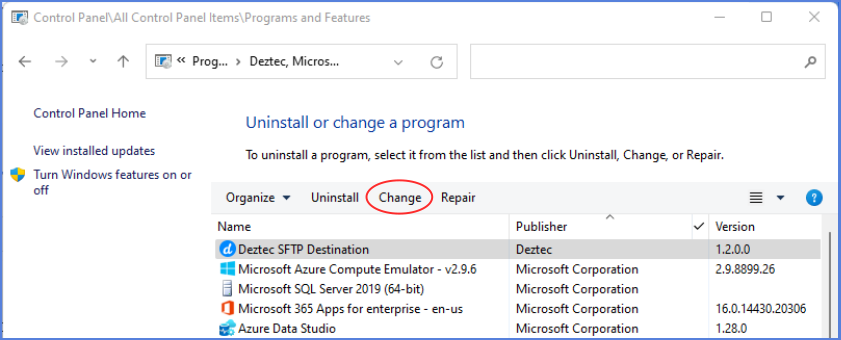
Control Panel → Programs and Features
. Highlight the Deztec installation, click
Change
, and follow the on-screen instructions for Manual / Offline Activation. Save the generated
.req
file somewhere you can easily locate for the next step.
On later versions of Windows, this can also be done from
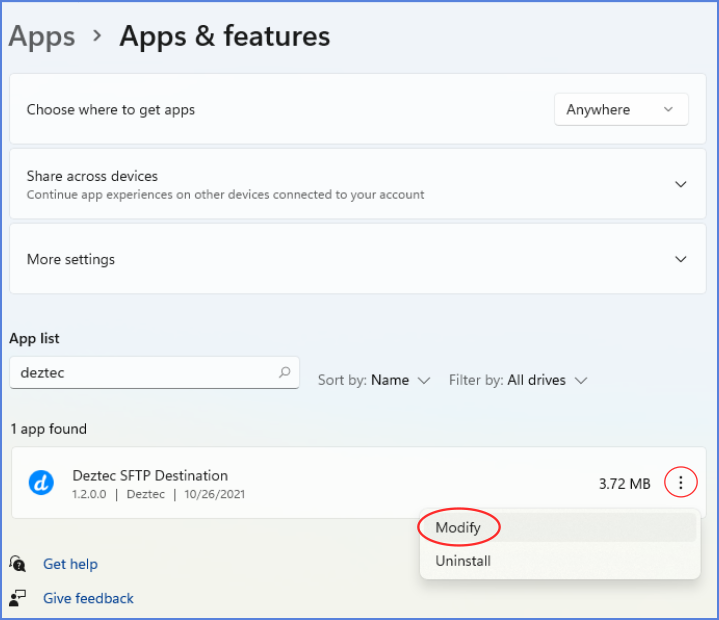
Settings → Apps → Apps & Features
. Highlight the installation, click
Modify
, and follow the on-screen instructions for Manual / Offline Activation. Save the generated
.req
file somewhere you can easily locate for the next step.
2 Upload the License Request
Transfer the .req file to a computer that can access the Deztec licensing service. Log in to the
Deztec customer portal
and
upload the .req file
to your account.
3 Renew the License
If needed, renew your license from within your account on the License page.
4 Download the License
After creating or renewing a license on the
License
page, you will be given the option to download the license. Download the license file, which uses the
.lic
extension, then transfer it to the server where the product is installed.
5 Apply the License
Repeat the installation-modification process from Step 1, choose Manual / Offline Activation, and select the downloaded .lic file when prompted.